
Customer Offer PageOffers that are easy to respond to
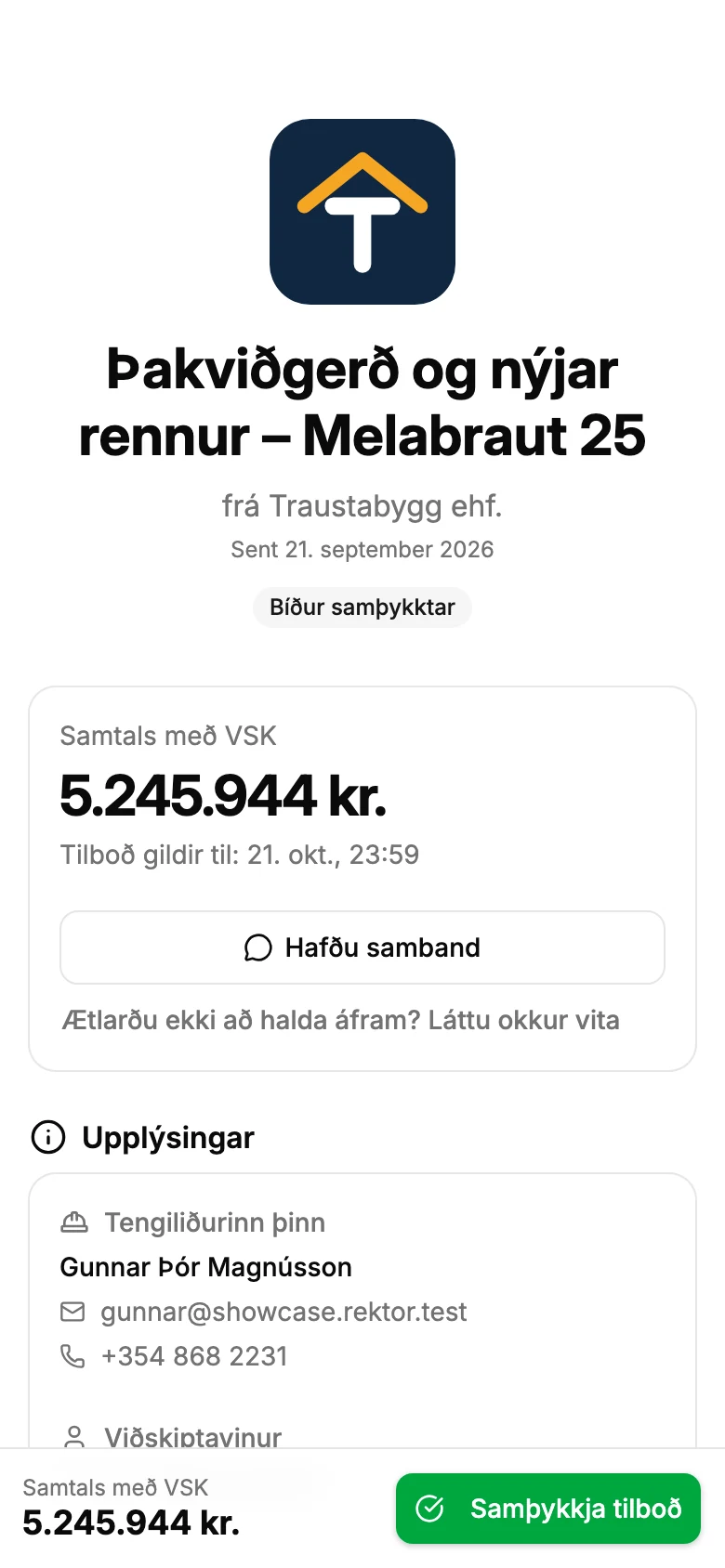
The customer gets an email with a link to a page where the quote is laid out clearly: units, quantities, prices, discount and the total including VAT. A PDF is there if they want it.
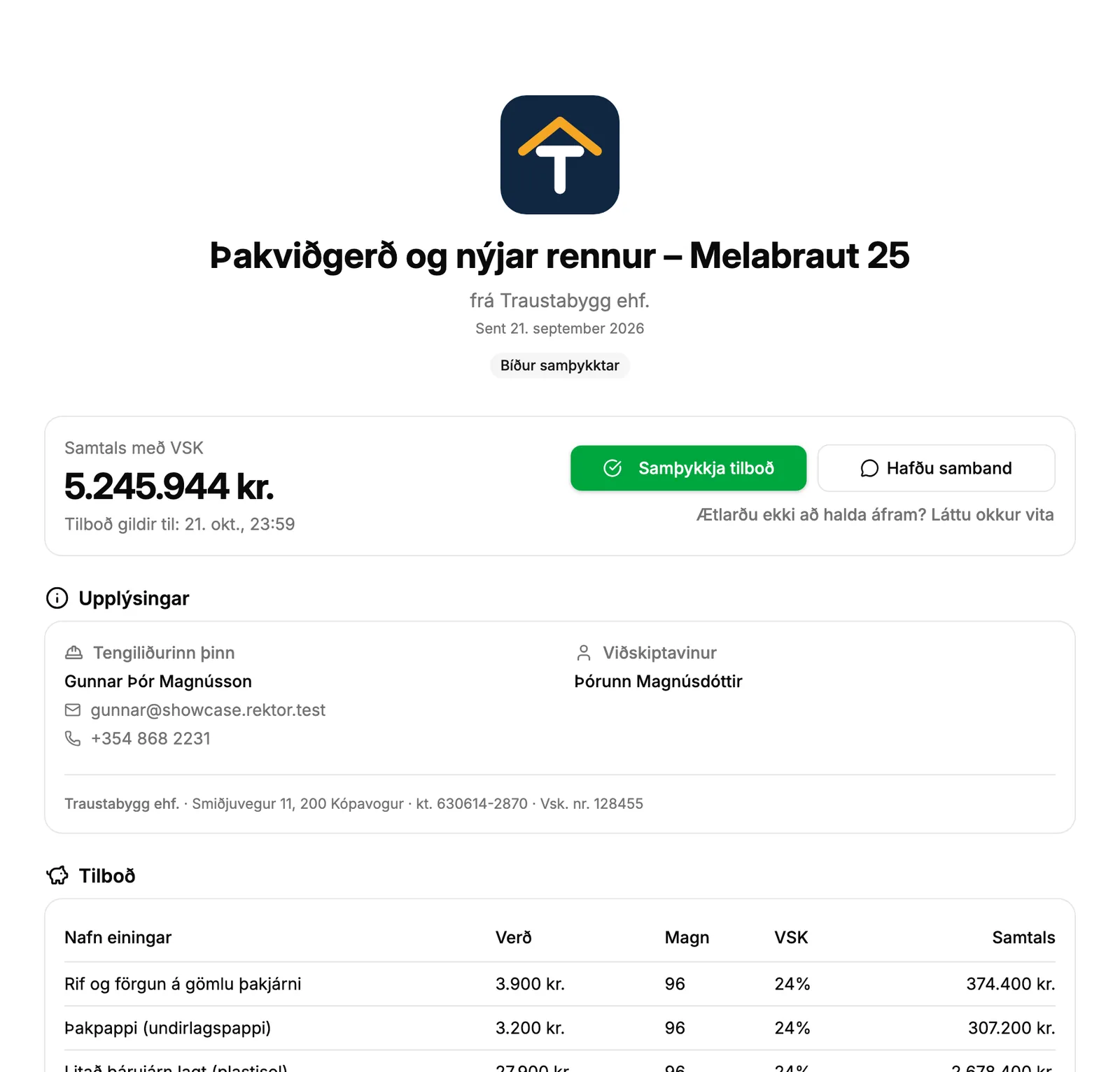
To accept, they click the button and confirm with their ID number. If they decline, they can leave feedback, and if the offer has expired, they can request an extension right on the same page.
What you get
- Accepted with one click and the payer's kennitala to confirm
- Decline with a reason so you know what stood in the way
- Direct messages from the site instead of phone calls and SMS
- The page becomes the job's progress page the moment the quote is accepted
How it works
What the customer sees
The offer email displays the items in the offer, includes the PDF as an attachment, and features a button that opens the offer page in a browser. No login and no app required.
- Your organization's logo and name at the top, along with the project title and when the offer was sent.
- Name, email, and phone number of the person who sent the offer, so the customer knows who to talk to.
- Your customer can read the page in Icelandic, English, Polish, Russian or Norwegian. The lines you write stay as you wrote them.
Acceptance with National ID
Approval takes two clicks: “Accept Offer” and then a confirmation where the total amount is clearly displayed, or the hourly rate when billing by hours worked.
- The national ID number is saved to the customer and used for invoicing, ensuring the correct payer is billed.
- The accepted offer is saved as a PDF with the project documents, stamped with the name, ID number, and time of approval, so you have confirmation of what was agreed upon.
- The customer receives a confirmation email in their language with the signed offer attached as a PDF, marked with their name, ID number, and time of acceptance.
Declining, questions, and extensions
Not all offers are accepted immediately. The page gives the client a way to decline or ask questions, so you always know where you stand.
- If the customer declines, they can provide a reason, which is forwarded to you.
- Questions go into a message thread with you instead of phone calls and SMS.
- If the offer has expired, the customer can request an extension with a single click.
Always the right version
If you edit an offer and resend it, the client shouldn't have to guess which version is current.
- If they open an older email, a warning appears stating the offer has changed, and the page displays the current version.
From offer to project
The same link stays with the project, so the customer never needs a new link. As soon as the offer is accepted, the page turns into the project's progress page.
Take control of your operations
Try Rektor free and see your real profit on every project.
14 days free · No credit card required · For contractors with 1–50 employees